
Remember these important points:
1. Add the disclaimer at the bottom of this page, below your signature in Font: Poppins; Font Size: 8pt; Colour: Light Grey;
2. Add Sapphire’s website address to the signature image, by selecting the image and adding the hyperlink: http://www.sapplive.co.za
3. Please check your signature to ensure the information is correct. Revert to art@sapplive.co.za with any amendments.
Full Signature With Image
How to install your signature:
1. Download your signature here
- Remember where you saved it
- (Click on the image to Zoom and Right-Click to save the image.)
2. Open a new email (Fig. 1.1)
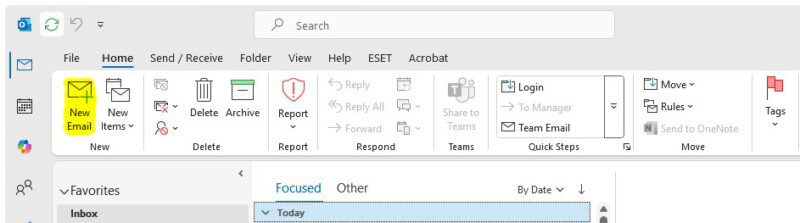
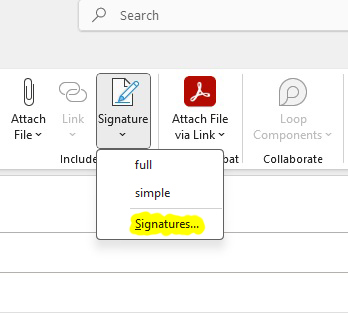
3. Click on Signature (Fig. 1.2) –> Signatures… (Fig. 1.3)

4. Select your old Signature Image until you see the selection handles, the old signature will appear outlined with little squares in the corners (Fig. 1.4)
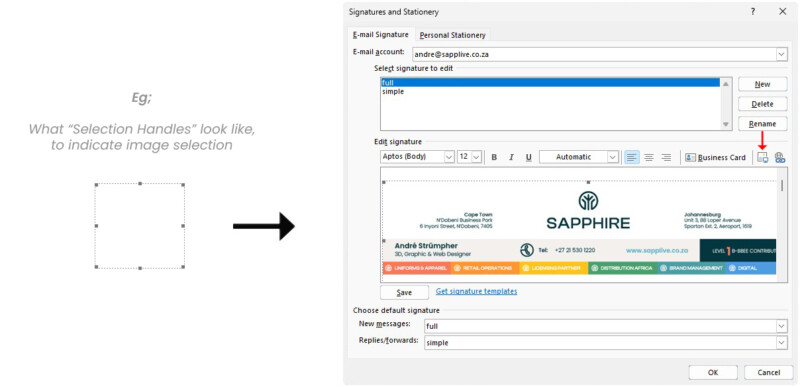
5. Click on the Add Image icon (Marked with a Red arrow in Fig. 1.4 above) and browse to where you saved your new signature, select the new signature and add it. (You should see your new signature previewed in the dialogue).
6. Click on the image again until you see the selection handles (see step 4) .
7. Click on the Add Hyperlink icon (Marked with a Blue arrow in Fig. 1.5 below) and copy and paste http://www.sapplive.co.za for Sapphire into the “Address” Field. Click OK. (We do this because when an individual clicks on your signature, it will take them to our website)
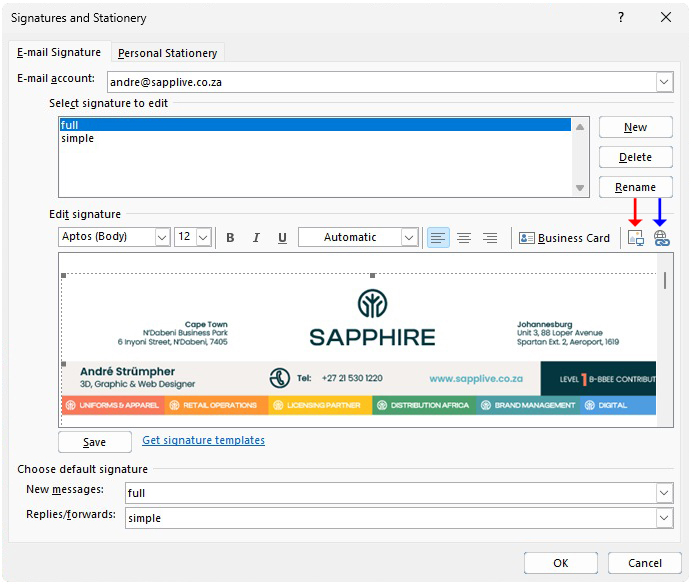
8. Click in the white area next to the signature, and hit ENTER. Your cursor should appear below the Email Signature. Copy the below disclaimer message (message can also be found at the bottom of the page) in its entirety and then paste it below the Email Signature (Marked with a blue arrow in Fig 1.6 below the disclaimer message).
Sapphire Disclaimer to copy:
DISCLAIMER: This message is intended for use of the individual or entity to whom it is addressed and contains information that is privileged and confidential. If the reader of this message is not the intended recipient please notify us immediately by return email and delete the original message. Sapphire does not accept responsibility for any amendments made to any attached document without its approval.
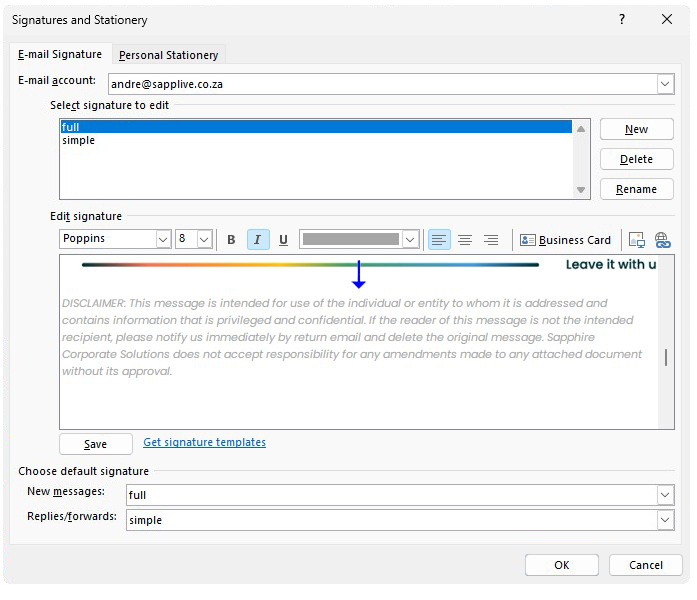
9. Click OK to close the “Signatures and Stationery” dialogue
10. Close the New Email, and open the new email again. You should see your new signature.
11. Test the link by clicking on the image – it should open our website.
Simple Signature Text Only
How to install your simple signature:
1. Open a new email (Fig. 1.1)
2. Click on Signature (Fig. 1.2) –> Signatures… (Fig. 1.3)
4. Select your old “simple” email signature (or click new if you are a new user) and copy the below text (below Fig. 1.4) and paste it into the “Edit Signature” tab and fill in your details in the required fields (Fig. 1.4) – You will require the Poppins font family installed-
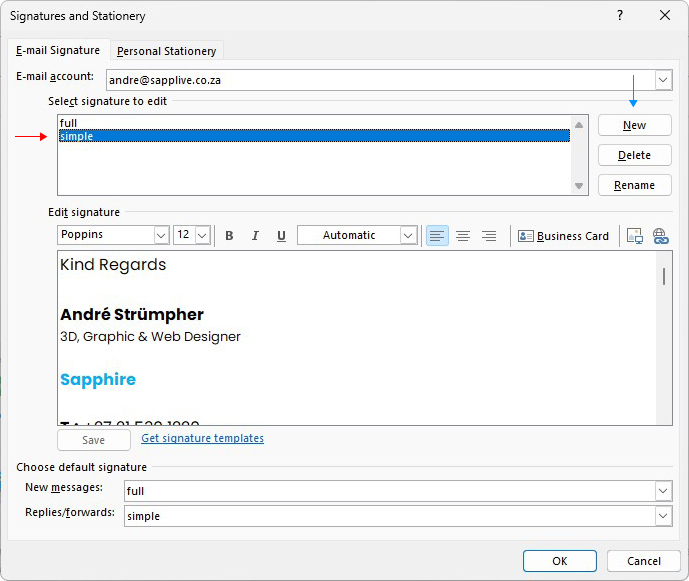
TEXT TO BE COPIED:
Kind Regards
-NAME AND SURNAME-
-ROLE IN COMPANY-
Sapphire
T.: -NUMBER-
F.: -NUMBER-
www.sapplive.co.za
DISCLAIMER: This message is intended for use of the individual or entity to whom it is addressed and contains information that is privileged and confidential. If the reader of this message is not the intended recipient please notify us immediately by return email and delete the original message. Sapphire Corporate Solutions does not accept responsibility for any amendments made to any attached document without its approval.
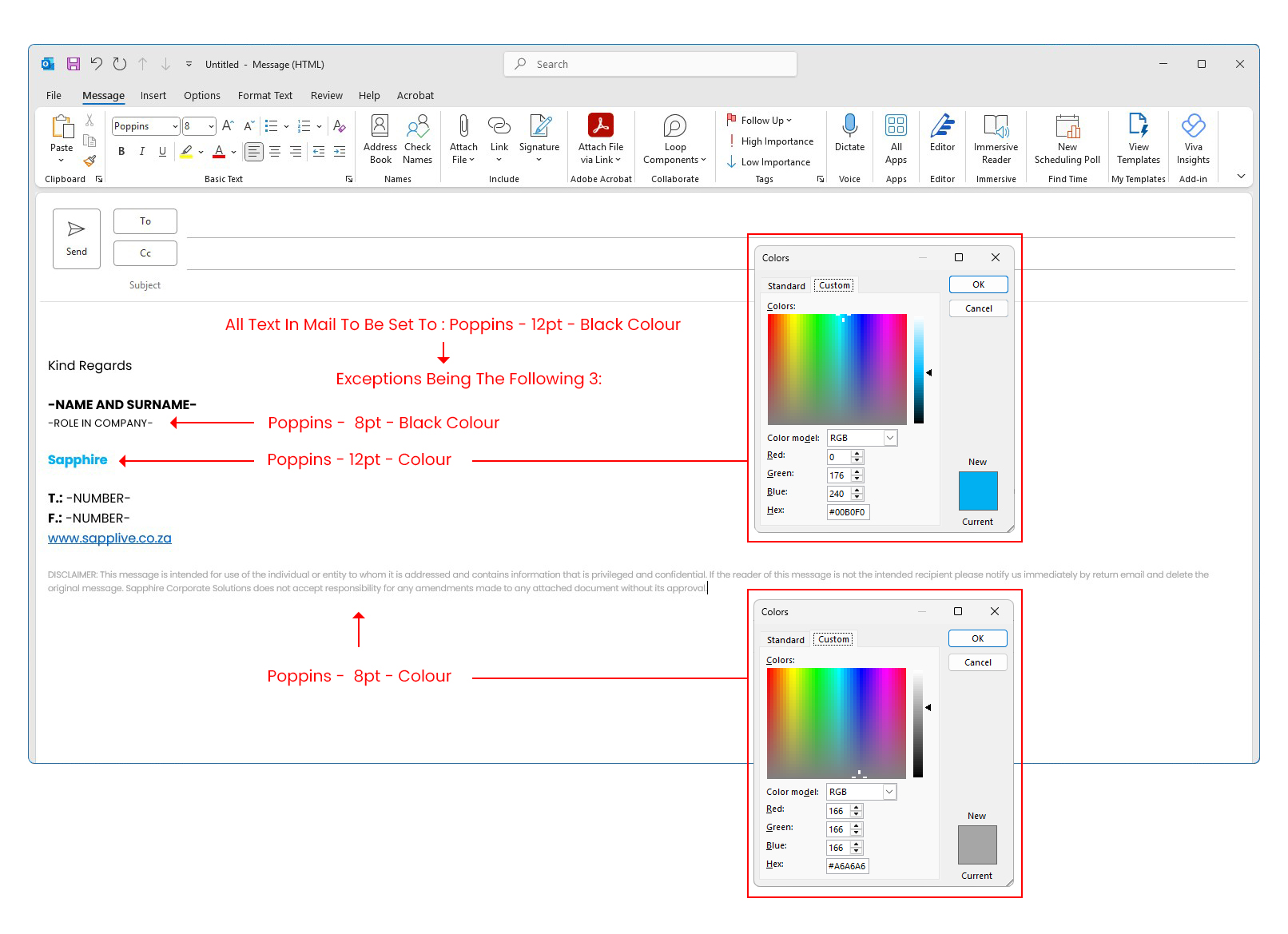
FORMATTING TO BE USED ON TEXT ( See Instructions on Fig 1.5):
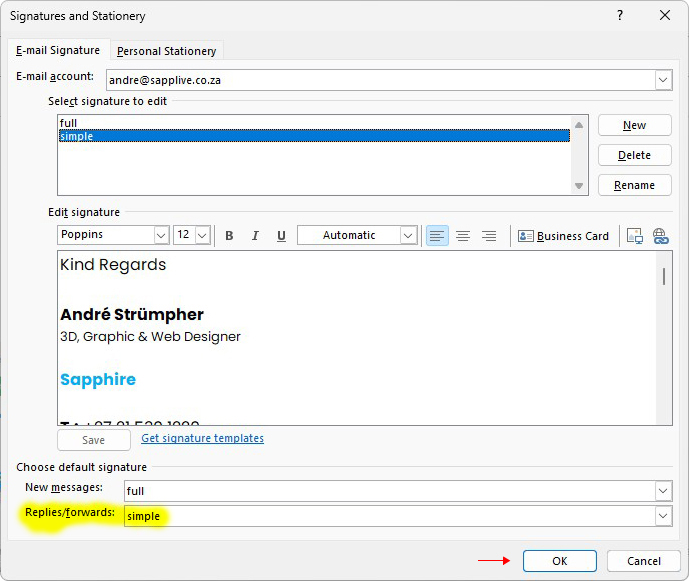
5. Set “Replies/forwards” to simple and Click OK (Fig. 1.6)
Sapphire Disclaimer to copy:
DISCLAIMER: This message is intended for use of the individual or entity to whom it is addressed and contains information that is privileged and confidential. If the reader of this message is not the intended recipient please notify us immediately by return email and delete the original message. Sapphire does not accept responsibility for any amendments made to any attached document without its approval.