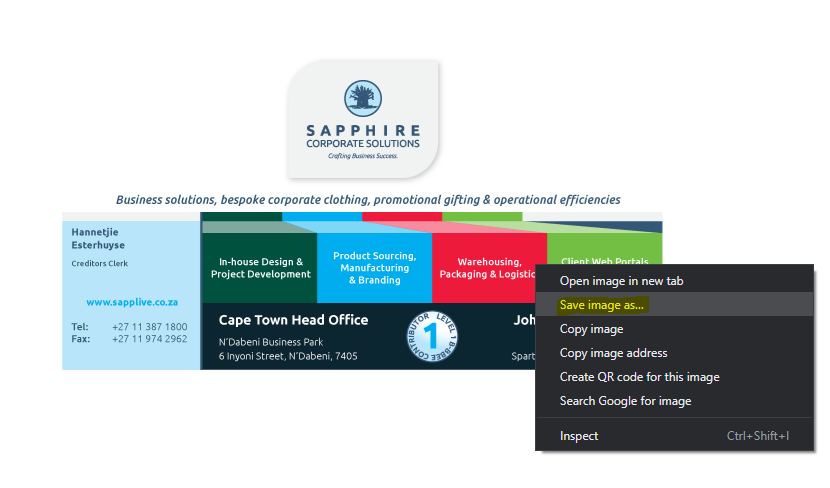
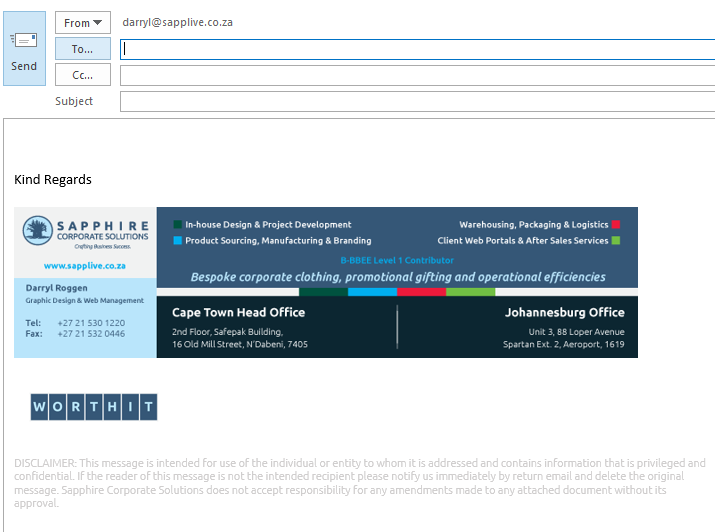
Our signatures need to look the same across the company; this is important for us to look professional through consistent branding. Please note the layout of our signature below:
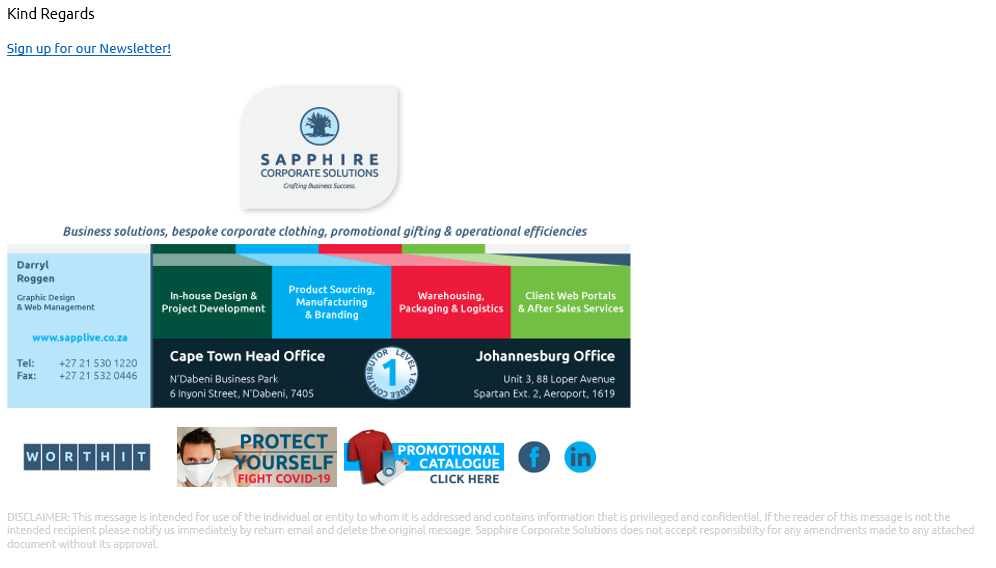
Example of a Sapphire Signature Layout
Use UBUNTU, our company font for all text in your signature. You can download Ubuntu here under the “Brand” Tab.
You may have a default closing phrase (in Ubuntu font).
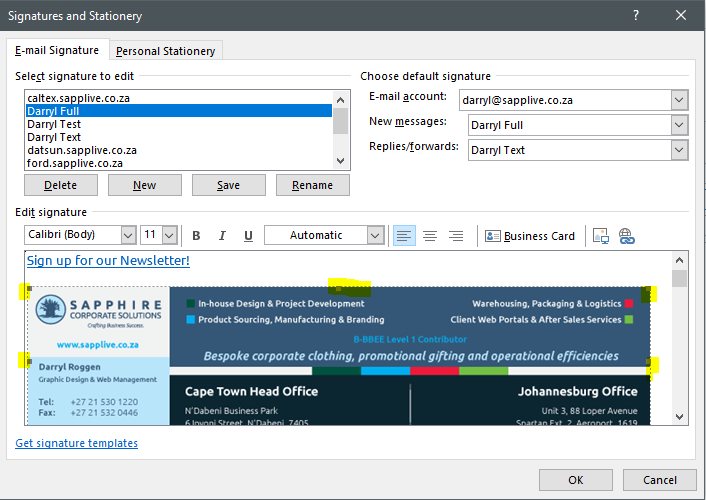
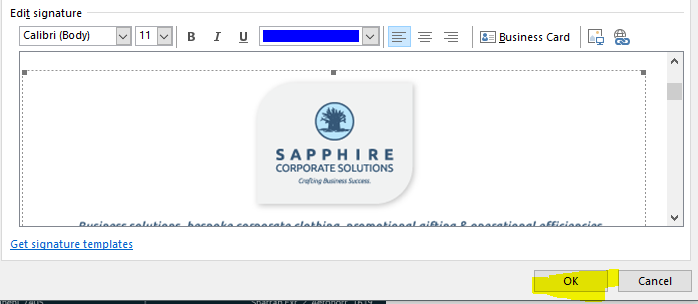
The signature images are not to be resized – if you stretch them bigger or smaller it will cause problems depending on the screen resolution your email recipient is using. If they use larger resolution, and if you stretch it bigger, it will look huge and blurry, and if you shrink it, it will be hard to read. So, please do not resize!
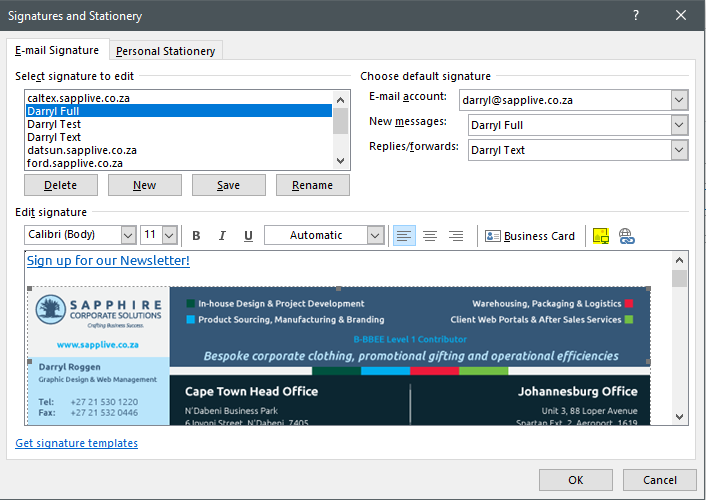
There must be a link to our website applied to the main signature image, the instructions are clear on how to apply the link.
Below the main image signature there should be a WORTHIT Mark (this also links to content see setup instructions).
Finally below everything, there needs to be the email disclaimer, in light grey 8pt Ubuntu.
Our signatures need to look the same across the company; this is important for us to look professional through consistent branding. Please note the layout of our signature below:
Use UBUNTU, our company font for all text in your signature. You can download Ubuntu here under the “Brand” Tab.
You may have a default closing phrase (in Ubuntu font).
The signature images are not to be resized – if you stretch them bigger or smaller it will cause problems depending on the screen resolution your email recipient is using. If they use larger resolution, and if you stretch it bigger, it will look huge and blurry, and if you shrink it, it will be hard to read. So, please do not resize!
There must be a link to our website applied to the main signature image, the instructions are clear on how to apply the link.
Below the main image signature there should be a WORTHIT Mark (this also links to content see setup instructions).
Finally below everything, there needs to be the email disclaimer, in light grey 8pt Ubuntu.