Posted on Leave a comment

Email phishing examples: Example 3

3. Legit companies have domain emails

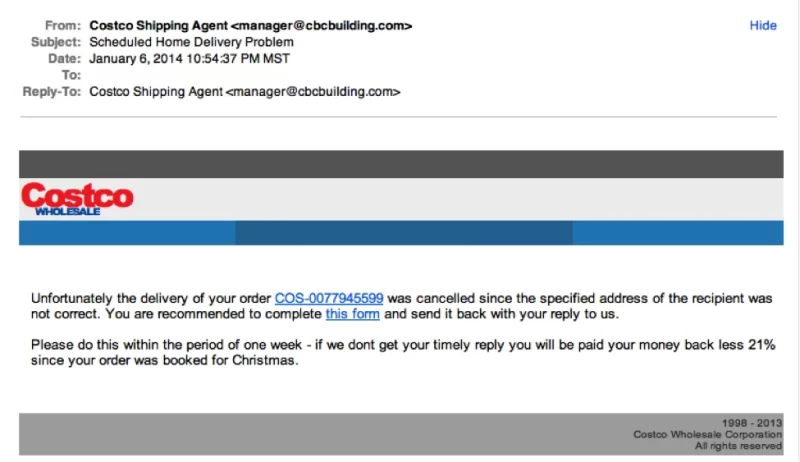
Don’t just check the name of the person sending you the email. Check their email address by hovering your mouse over the ‘from’ address. Make sure no alterations (like additional numbers or letters) have been made. Check out the difference between these two email addresses as an example of altered emails: michelle@paypal.com michelle@paypal23.com

Just remember, this isn’t a foolproof method. Sometimes companies make use of unique or varied domains to send emails, and some smaller companies use third party email providers.

 “Costco’s” logo is just a bit off.
Notice the subtle logo difference between the logo in the email and the official logo above

In the next article: Email Phishing Example 4

Posted on Leave a comment

Email phishing examples: Example 2

2. Legit companies usually call you by your name

Phishing emails typically use generic salutations such as “Dear valued member,” “Dear account holder,” or “Dear customer.” If a company you deal with required information about your account, the email would call you by name and probably direct you to contact them via phone.

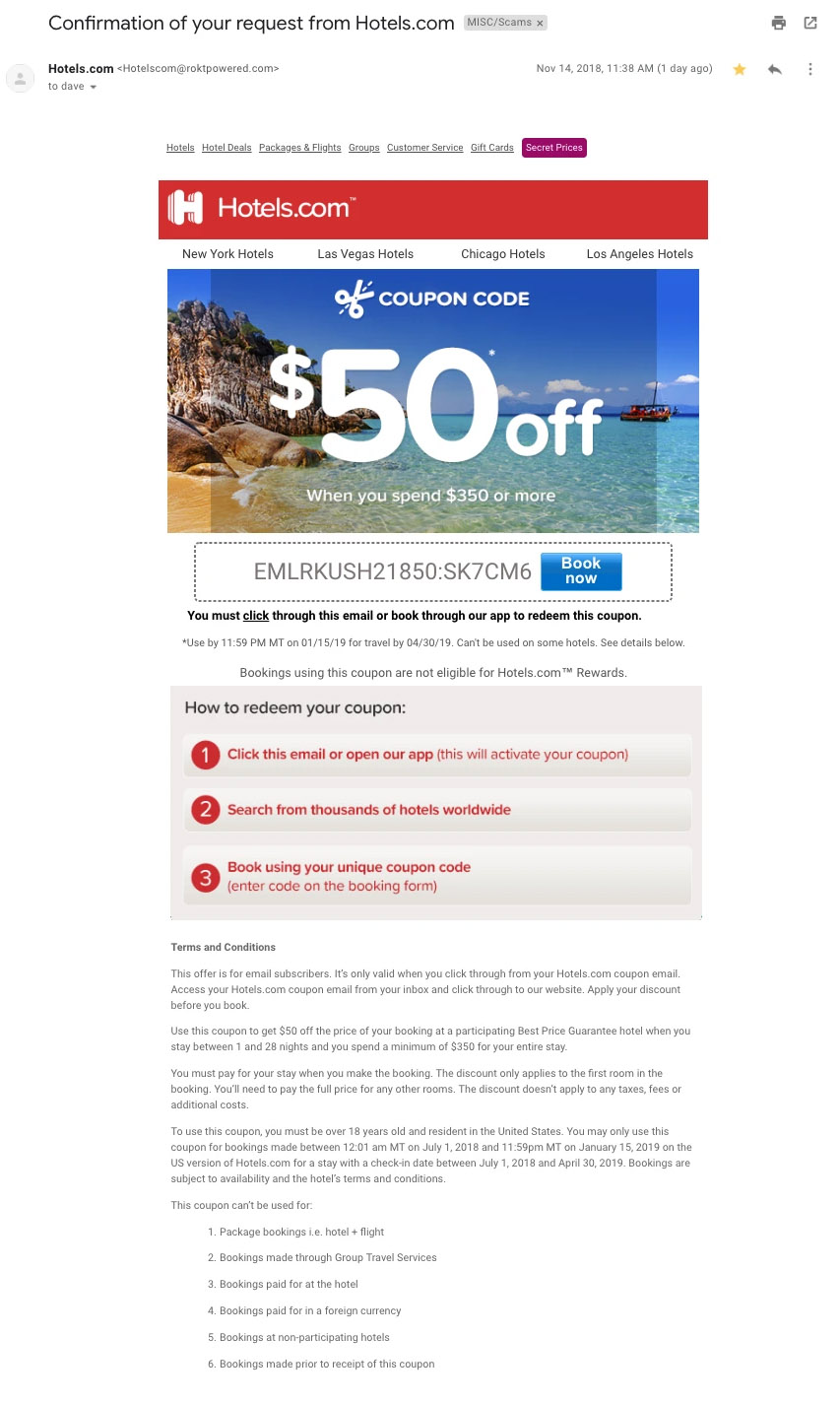
BUT, some hackers simply avoid the salutation altogether. This is especially common with advertisements. The phishing email below is an excellent example. Everything in it is nearly perfect. So, how would you spot it as potentially malicious?

This is a very convincing email.  For me, the clue was in the email domain. More on that below.

In the next article: Email Phishing Example 3

Posted on Leave a comment

Email phishing examples: Example 1

1. Legit companies don’t request your sensitive information via email

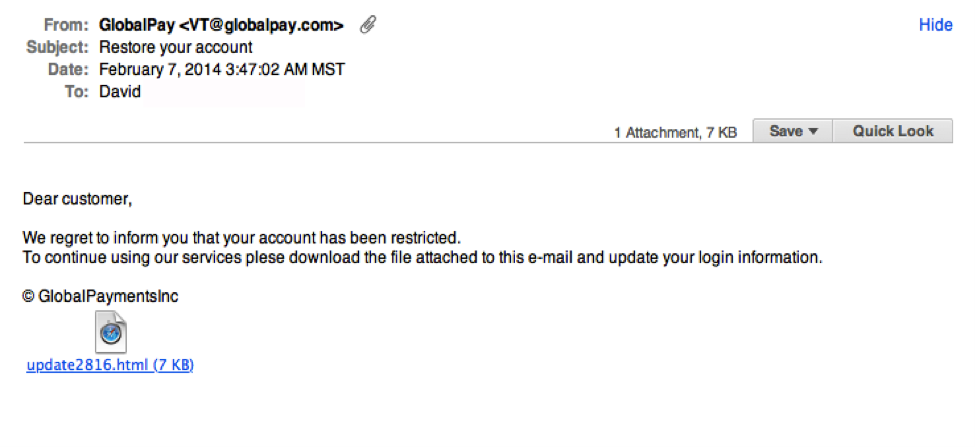
Chances are if you receive an unsolicited email from an institution that provides a link or attachment and asks you to provide sensitive information, it’s a scam. Most companies will not send you an unsolicited email asking for passwords, credit card information, credit scores, or tax numbers, nor will they send you a link from which you need to login.

 Notice the generic salutation at the beginning, and the unsolicited web link attachment?

In the next article: Email Phishing Example 2

Posted on Leave a comment

7 Ways to Recognise a Phishing Email: Email Phishing Examples

“You can fool some of the people all of the time, and all of the people some of the time, but you cannot fool all of the people all of the time.” –Abraham Lincoln

What is a phishing email?

Are you sure that email from UPS is actually from UPS? (Or Costco, BestBuy, or the myriad of unsolicited emails you receive every day?) Companies and individuals are often targeted by cybercriminals via emails designed to look like they came from a legitimate bank, government agency, or organisation. In these emails, the sender asks recipients to click on a link that takes them to a page where they will confirm personal data, account information, etc.

What is phishing?

This technique is called phishing, and it’s a way hackers con you into providing your personal information or account data. Once your info is obtained, hackers create new user credentials or install malware (such as backdoors) into your system to steal sensitive data.

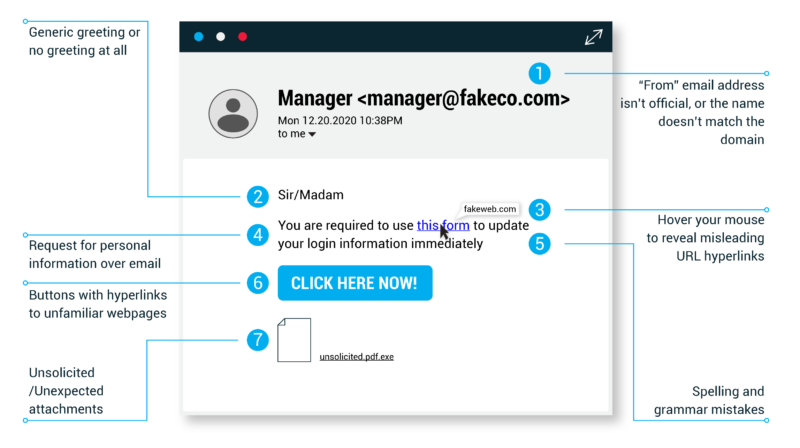
Phishing emails today rarely begin with, “Salutations from the son of the deposed Prince of Nigeria…” and it’s becoming increasingly difficult to distinguish a fake email from a verified one. But, most have subtle hints of their scammy nature. Here are seven email phishing examples to help you recognize a malicious email and maintain email security.

What is a common indicator of a phishing attack?

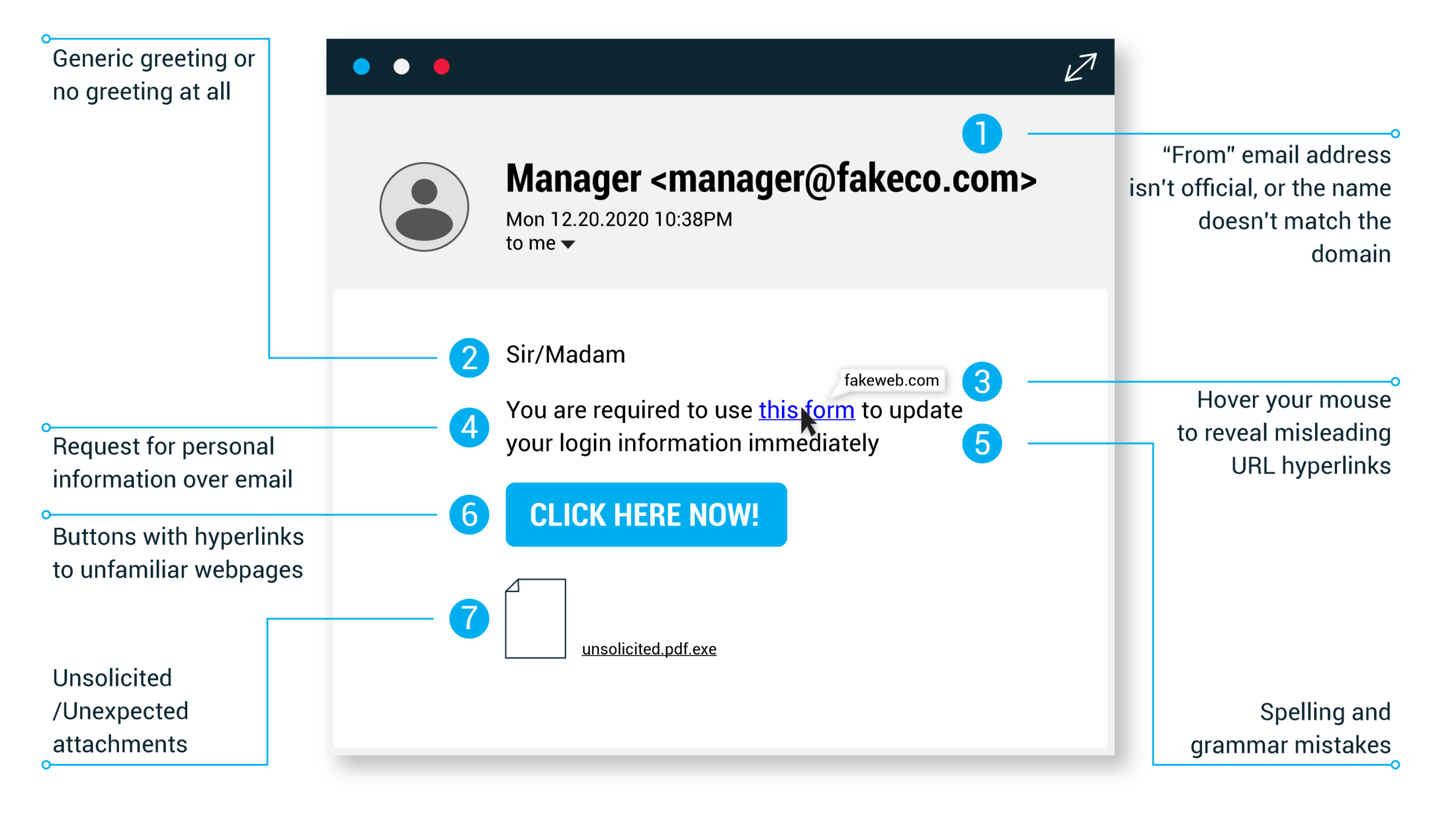
Requests for personal information, generic greetings or lack of greetings, misspellings, unofficial “from” email addresses, unfamiliar webpages, and misleading hyperlinks are the most common indicators of a phishing attack. 

In the next article: Email Phishing Examples

Posted on Leave a comment

New Signature Image – Please Update

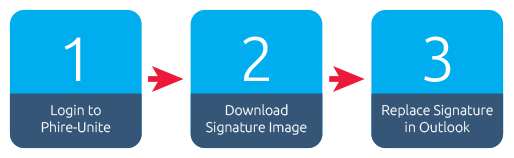
Please take the time to set up your updated signature.


  1. Visit www.phire-unite.co.za and log in
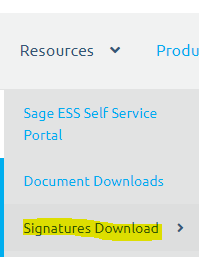
  2. Once you have logged into www.phire-unite.co.za you can download your signature here: Signatures Download
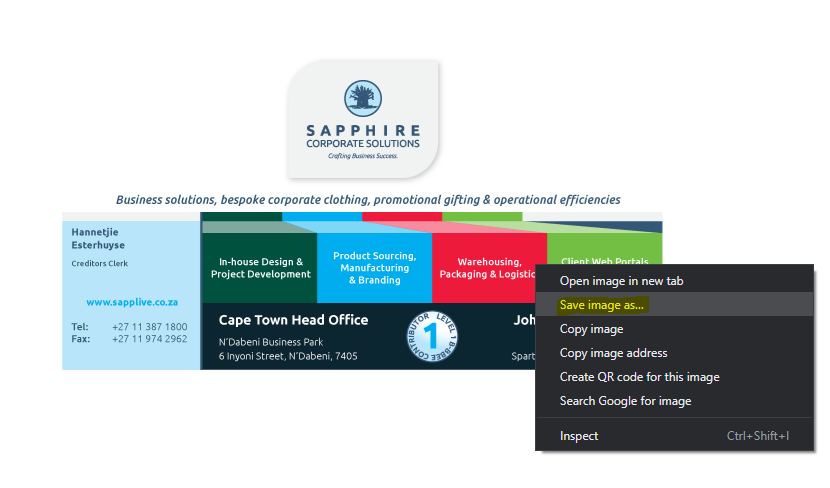
  3. To download your new signature, right-click on the logo, and select save image as…


  4. Replace current Image with your new signature image:
    • – Open a new email
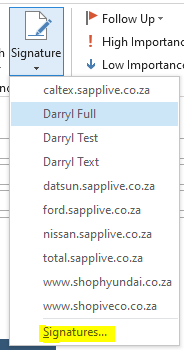
    • – Click on “Signature –> Signatures…”


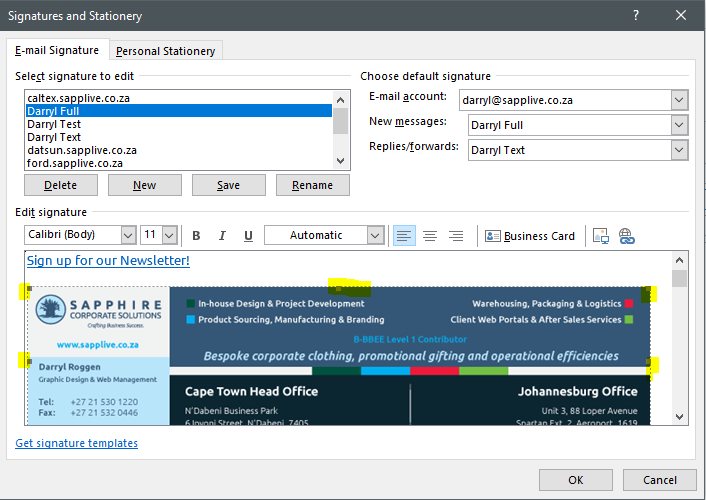
    • – Select the old signature image so that it has corner handles


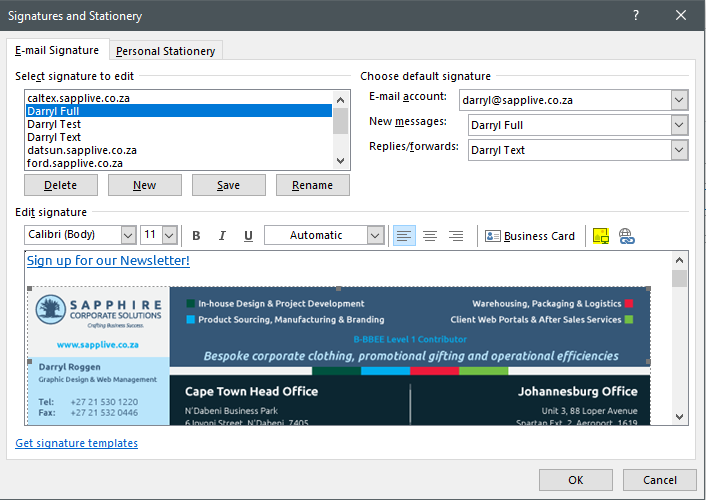
    • – Click on the insert image button and browse to where you saved your signature on your computer and select the file and then click “Insert”


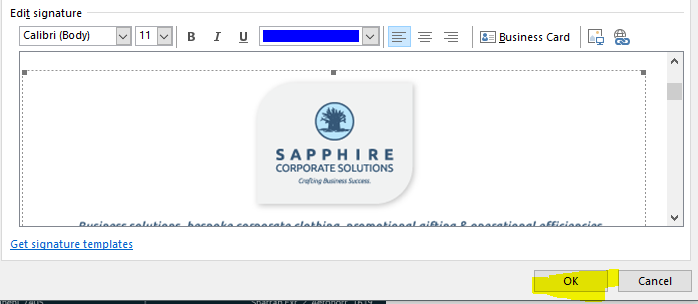
    • – Once you have inserted the signature, click OK


    • – Close the new email and then open a new email again and you should see the new signature, it should look like this:


Thank you