Posted on Leave a comment

Email Security Tips – Important!

Sapphire is a target for malicious hackers that want to steal or hold to ransom our company information or get access to your personal information or banking details. We need to be vigilant with incoming emails and the attachments they may contain.

1. Monitor your computer

Check your computer’s system tray regularly, to make sure the Sophos (the Anti-virus software we use) is in fact running and active on your PC. Your system tray is found close to your computer clock on the bottom left hand corner of your screen.

Sophos is circled in red

2. Watch for Unknown, Odd or Spoofed Email Addresses

  • Pay attention to the sender’s email address, especially if the message comes from a previously unknown contact or seems in any way suspicious.
  • If you are unsure;
    • never click on links in the email’s body
    • do not open any attachments
    • report the email (with a screenshot) to your manager

A common spoofing method is when they change the name of the sender so that it doesn’t match the email address. for example; you may see an email from Darryl Roggen in your inbox (Who you know), but when you investigate the email address it’s actually peter@hotmail.com. Here’s another example;

Another spoofing method is to use characters that are similar to actual letters in order to make the sender email address to appear to be from a recognisable source: For example, many Greek characters look similar to Latin letters, such as the Greek character “ε” and the letter “e”. Emails may use the Greek character instead of the letter “e” in the sender’s address, like this: “example@sapphirε.co.za”. Unless the recipient is paying attention, they might not notice the email address is incorrect.

3. Don’t Give Out Personal Information

Phishing scams usually appear to come from legitimate businesses, like your bank or a government agency like the IRS or the Social Security Administration. These emails will often contain URLs that link to malicious web pages asking for your private information, and the spoofed pages look very convincing!

Again, we understand that, in business, it’s not often possible to avoid giving away your personal information. Just remember: legitimate businesses, like the government or Apple, will never ask for personal information such as passwords, social security numbers, or credit card numbers via email.

Giving out your information can lead to drained bank accounts or even identity theft.

4. Avoid Strange Attachments or Unfamiliar Links

The best policy is to refrain from downloading files or clicking through links in a strange email unless you trust the source. Malware, viruses, and other types of malicious material can be easily downloaded to your server or computer through attachments or malicious links, such as the Dropbox link in the below example:

5. Seems Too Good To Be True? It Probably Is.

Another sign of a dangerous spam email is when the content seems too good to be true – often in the form of a promise for large sums of money or unprompted offers for advertisement opportunities. Such emails are almost always phishing schemes trying to collect bank account information from the recipient.

The goal of an email that seems too good to be true is to encourage the recipient to click a link and provide their bank account information – a classic phishing scam. These scams come in many forms, including the story about the government owing you money in the below example:

To further illustrate the growing threat every company and individual is facing with regards to their cyber security, please take a moment to read this article about the WannaCry Malware and how it has changed and multiplied over the last 2 years. Link

Posted on 1 Comment

#FreeFoodFridays with Smile904fm & Romans Pizza!

Today we were pleasantly surprised by Bailey Schneider from Smile904fm with pizza from Romans Pizza for lunch! Thanks to Laura for entering the competition and then winning! You’re the best!

Posted on Leave a comment

Email Signature Update

Please take the time to set up our updated signature.

Once you have logged into www.phire-unite.co.za you can download your signature here: https://www.phire-unite.co.za/downloads-3/signatures-download/

You can also find instructions on how to set up your signature here: https://www.phire-unite.co.za/signature-installation-instructions/

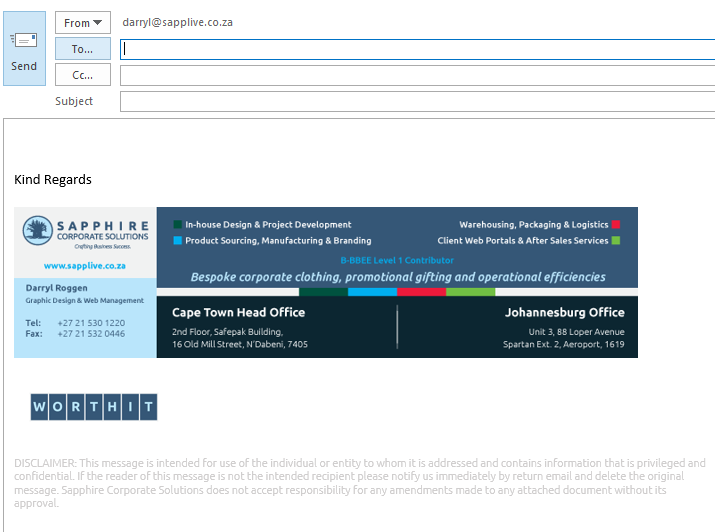
Our signatures need to look the same across the company; this is important for us to look professional through consistent branding. Please note the layout of our signature below:

Example of a Sapphire Signature Layout
  1. Use UBUNTU, our company font for all text in your signature. You can download Ubuntu here under the “Brand” Tab.
  2. You may have a default closing phrase (in Ubuntu font).
  3. The signature images are not to be resized – if you stretch them bigger or smaller it will cause problems depending on the screen resolution your email recipient is using. If they use larger resolution, and if you stretch it bigger, it will look huge and blurry, and if you shrink it, it will be hard to read. So, please do not resize!
  4. There must be a link to our website applied to the main signature image, the instructions are clear on how to apply the link.
  5. Below the main image signature there should be a WORTHIT Mark (this also links to content see setup instructions).
  6. Finally below everything, there needs to be the email disclaimer, in light grey 8pt Ubuntu.
Posted on Leave a comment

New Generic Sapphire Powerpoint Template

We have updated the template and it can be downloaded from the Downloads page on the Sapphire Intranet now. Please delete your old template. The latest file name is 20190408_SCS_Powerpoint_template.pptx

What has been updated?

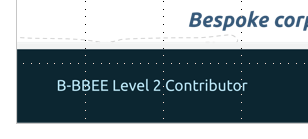
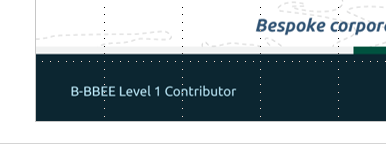
The B-BEEE Level on the bottom left of the cover page has been updated. Also small design and background changes have been made.

Old
New

Usage tips

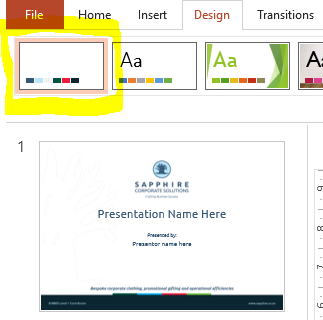
  1. The template has its own Design theme, that helps to select our Sapphire Colours, each time you duplicate the content slide (page 2 in the template) this will apply the Sapphire Colours to the new slides.
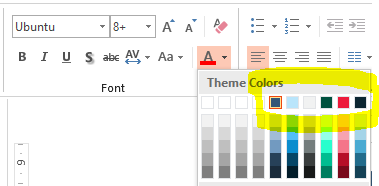
  2. You will also see the Sapphire Colours in the paint and text colour buttons.
Sapphire Theme
Default Colours

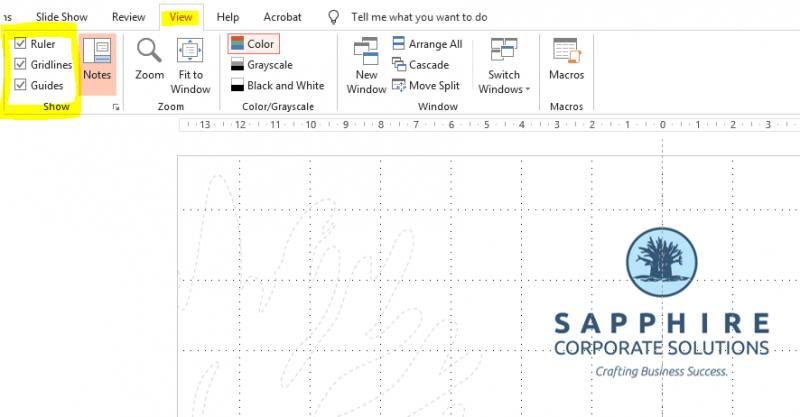
3. To make your layout easier, and to get more professional results you can enable Grid, Guides and Ruler under the View Tab.

Enabling Grid lines and Guides help with object alignment in your Presentation

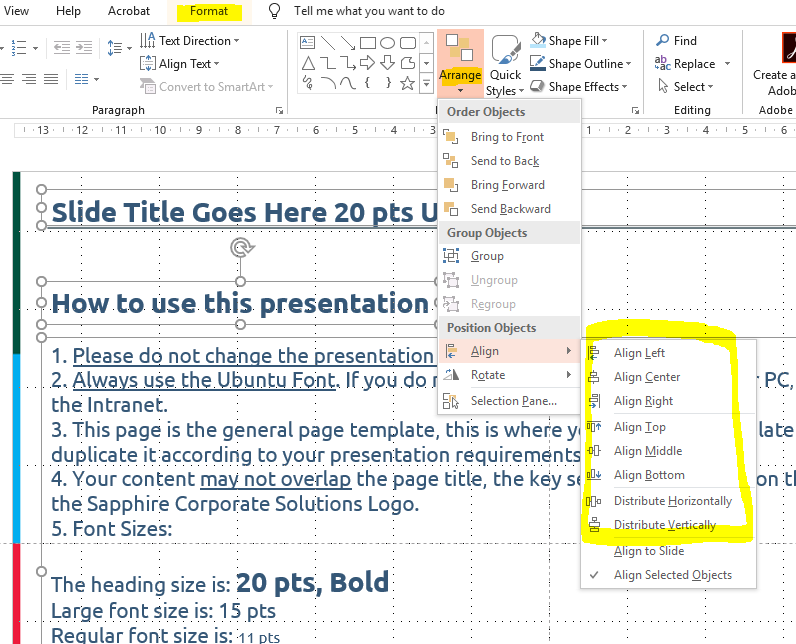
4. You can also select 2 or more items by clicking on them and holding SHIFT or CTRL and then selecting an alignment or distribution option.

5. NB: Ensure that your content does not overlap the template background (logo, disclaimer colour bars on the right and heading line at the top)

Finally, please remember that if you intend on distributing your presentation to clients, save it as a PDF first before sending it on.

If you get stuck you can contact art@sapplogistics.co.za for assistance.

Happy Presenting!

Posted on Leave a comment

Updated Signatures

Please take the time to set up our updated signature.

Our B-BBEE rating has been improved to Level 1 and it is very important to have the correct rating on our signatures.

Once you have logged into www.phire-unite.co.za you can download your signature here: https://www.phire-unite.co.za/downloads-3/signatures-download/

You can also find instructions on how to set up your signature here: https://www.phire-unite.co.za/signature-installation-instructions/

Our signatures need to look the same across the company; this is important for us to look professional through consistent branding. Please note the layout of our signature below:

  1. Use UBUNTU, our company font for all text in your signature. You can download Ubuntu here under the “Brand” Tab.
  2. You may have a default closing phrase (in Ubuntu font).
  3. The signature images are not to be resized – if you stretch them bigger or smaller it will cause problems depending on the screen resolution your email recipient is using. If they use larger resolution, and if you stretch it bigger, it will look huge and blurry, and if you shrink it, it will be hard to read. So, please do not resize!
  4. There must be a link to our website applied to the main signature image, the instructions are clear on how to apply the link.
  5. Below the main image signature there should be a WORTHIT Mark (this also links to content see setup instructions).
  6. Finally below everything, there needs to be the email disclaimer, in light grey 8pt Ubuntu.
Example of a Sapphire Signature Layout